Begin with these three checks
These discovery steps use the installed CLI and do not require a model account.
- Find your version. Run
craft-anything-cli --version. Keep the version with any error you report. - Read its help. Run
craft-anything-cli --help. Use your installed version’s accepted options. - List its tools. Run
craft-anything-cli commands. Pick one tool, then read that tool’s help.
Find a command for your task
Expand an entry for copyable syntax, prerequisites, the expected check and a recovery step.
8 commands
First checkCheck the CLI version
Confirm which executable your terminal is using before following a command example.craft-anything-cli --version
craft-anything-cli --version- Before you start
- Install the official CLI for your operating system and open a terminal.
- What to look for
- A version identifier. Compare it with the release whose instructions you are following.
- If it goes wrong
- If the command is not found, check the extracted package and executable path. Installing the desktop app does not by itself confirm your terminal can find its CLI.
First checkRead the command overview
See the flags and subcommands supported by your own installed version.craft-anything-cli --help
craft-anything-cli --help- Before you start
- The version command must find the intended executable.
- What to look for
- Usage, global options and available subcommands. Read this before copying flags from a different version.
- If it goes wrong
- Use the help from the executable you actually run. Keep the full unknown-option message if an example is rejected.
Discover toolsList the available tools
Find tool names grouped by toolset before choosing one to inspect.craft-anything-cli commands
craft-anything-cli commands- Before you start
- An installed CLI. You do not need a model account to list tools.
- What to look for
- Tool names and descriptions. Choose a specific tool name, then inspect its help before calling it.
- If it goes wrong
- If the tool you expected is missing, compare the CLI version and the enabled toolsets with the release documentation.
Discover toolsInspect this install’s capabilities
See toolsets, tool availability and engine information for this installation.craft-anything-cli capabilities
craft-anything-cli capabilities- Before you start
- Run this on the computer where you intend to inspect the target.
- What to look for
- A capability report for this installation. Use it to identify missing engines or unavailable toolsets.
- If it goes wrong
- Keep the relevant availability message. A listed tool can still need an external engine, target or platform.
Diagnose setupRead the installation health report
Check registrations, engines, AI backends and the MCP server in a readable format.craft-anything-cli --format text doctor
craft-anything-cli --format text doctor- Before you start
- An installed CLI. You can run checks before configuring a model account.
- What to look for
- Checks marked ok, warn, FAIL or info, with remediation where supplied. A missing AI backend matters for building, while other inspection tasks can still be available.
- If it goes wrong
- Start with the failed check that matches your intended task. Keep its exact message and remediation; a failed health report does not mean every inspection tool is unusable.
Inspect one toolRead one tool’s arguments
Learn the required inputs before sending a tool request.craft-anything-cli core-session-show --help
craft-anything-cli core-session-show --help- Before you start
- Use commands to find the tool ID. CLI subcommands use dashes where tool IDs use underscores.
- What to look for
- Usage and accepted arguments for the session-status tool. This command opens help; it does not show an actual session report.
- If it goes wrong
- If the name is unrecognized, confirm the tool exists in commands for this version. Avoid guessing JSON fields or borrowing arguments from another tool.
Understand MCPInspect the MCP server options
See how the CLI exposes tools to an external MCP client.craft-anything-cli mcp --help
craft-anything-cli mcp --help- Before you start
- Start with help. Registering a server in a client is a separate configuration step.
- What to look for
- Options for the installed MCP server. The server uses standard input/output; starting mcp normally waits for client requests rather than a chat prompt.
- If it goes wrong
- If a client cannot start the server, check its executable path and original startup error. Prefer an absolute path when the client cannot inherit your terminal’s PATH.
Preview registrationPreview client setup changes
Inspect the proposed registration changes before applying them.craft-anything-cli setup --dry-run
craft-anything-cli setup --dry-run- Before you start
- Have the CLI installed. A supported client may need to be installed for its configuration to be detected.
- What to look for
- A setup plan showing what would change, without writing those changes. Review the named clients and paths.
- If it goes wrong
- If no intended client is detected, check setup --help and the client’s installation. Stop at the preview until you understand the proposed configuration.
No matching commands
Try “help”, “doctor” or “MCP”, or clear the filters to see all entries.
One engine, three ways to reach it
Choose an interface for the task. A tool is a named operation exposed through that interface.
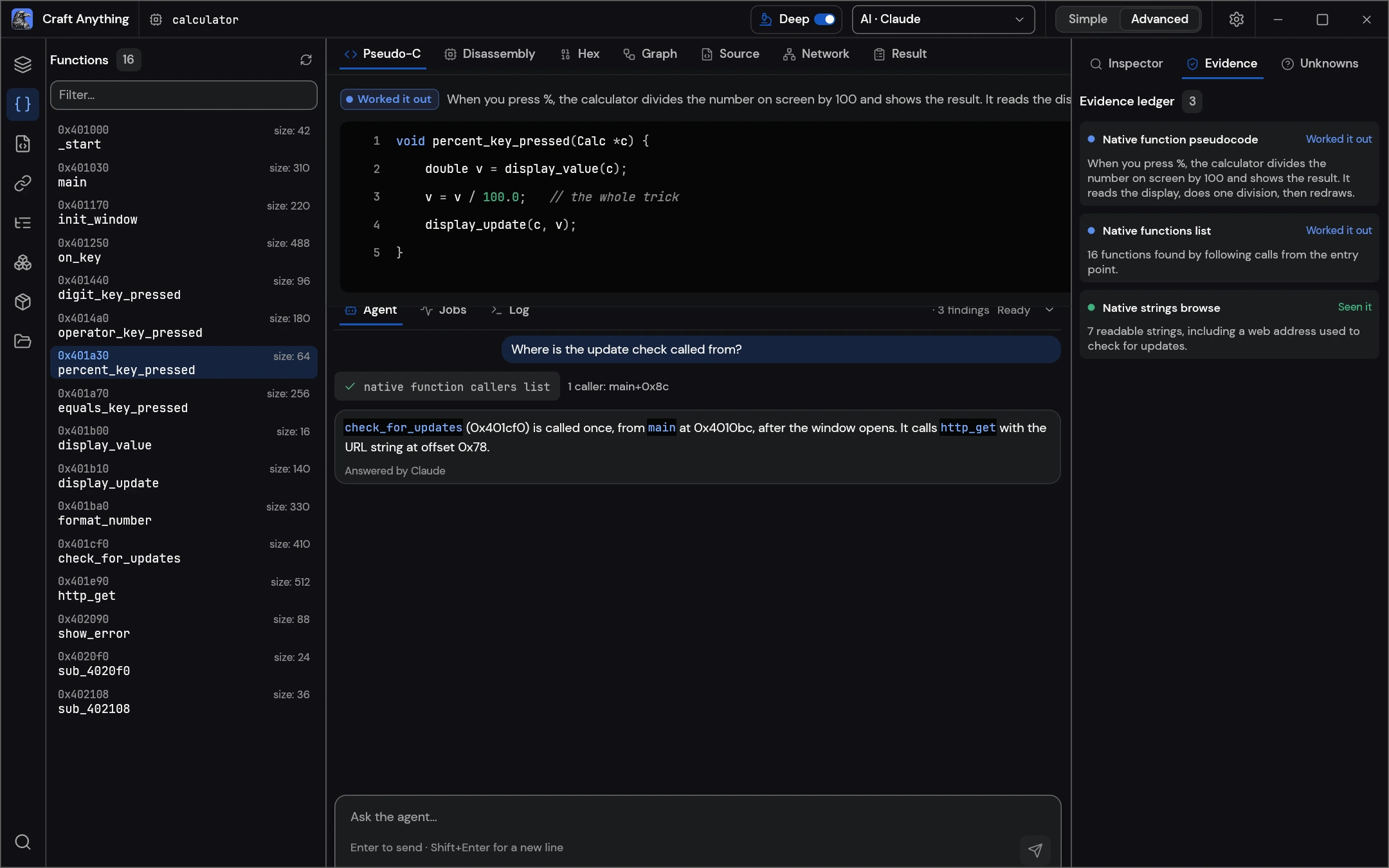
Work visually
Use Simple for the project workflow or Advanced to explore inspection panels.
Run a command
Give an installed program a subcommand and its inputs in your terminal.
Offer tools to a client
An external client sends structured tool requests to the server.
Read a command from left to right
The executable, an output option and the operation each do a different job.

- Program
craft-anything-climust resolve to the intended installed executable.- Option
--format textselects readable CLI output. Put it before the tool name to avoid a tool’s own format option.- Operation
doctorrequests the health report. A single-tool command uses dashes, such ascore-session-show.
Syntax checked against v0.3.0 CLI definitions and setup/doctor options. Use local --help to check a different version.
When a command does not do what you expect
The command is not found
Check that the CLI package was extracted, then use its actual executable path. Restart the terminal after changing PATH. If a desktop client cannot find the same program, its launch environment may differ.
Check an unstartable tool server →The doctor report says “problems found”
Read the individual check and remediation. In v0.3.0, doctor exits with status 1 for an unhealthy report. Match the failed check to your task before trying to repair unrelated components.
Check a missing build agent →The MCP command appears to wait
craft-anything-cli mcp serves requests over standard input/output. Start with mcp --help; an MCP client is responsible for starting the server and sending protocol requests.
A browser tool has lost its open page
The official tool-status notes say browser state belongs to its session. Separate CLI invocations do not share that live browser. Keep dependent browser operations in one app or MCP session.
Read the browser-session note ↗